
Upload
The Upload panel of the Attach Files dialog box is where you upload images and documents and attach them to Order line items. The panel is opened by hovering your mouse pointer over the empty cell in the File field of the grid and then clicking on the File icon when it appears.
To Upload a file or image:
- In the Order screen, hover your mouse pointer over the empty cell in the File field of the grid and click on the File icon when it appears. This opens the Uploald panel
- Click on the Choose Files button. This opens Windows "Open File" dialog box.
- Navigate on your PC to the file you wish to upload and click Open. You are returned to the Upload screen with the file displayed in the grid with a Progress status of Not Started.
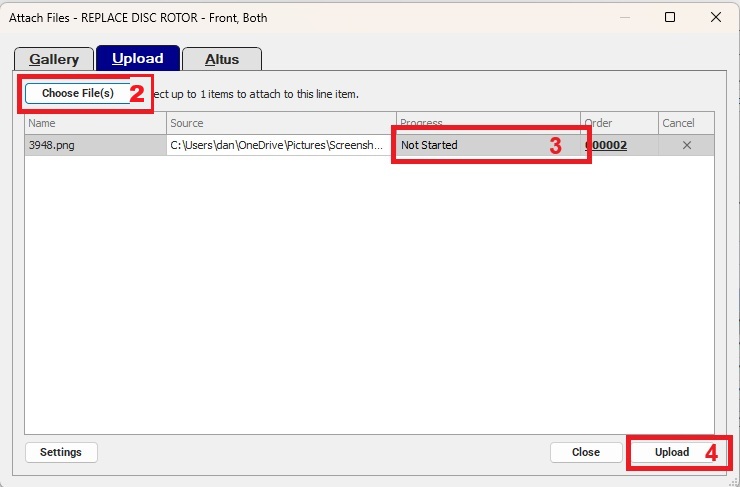
- Click Upload. A Status bar indicates upload progress.
- Once the upload has been completed, the status changes to Complete
See File Attachments for complete details on uploading images and documents and attaching them to order line items.