
File Attachments
 Manager SE has the ability to store image and document files per line item. This includes any Labor, Part, Sublet or Note lines. This keeps such items organized logically for fast, easy access at any time.
To Attach a File to an Order Line Item:
1. Roll your mouse cursor over any item in the File field of the order grid. A small icon appears.
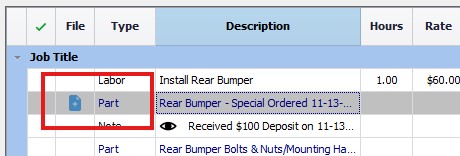
2. Click the icon to open the Upload dialog box.
3. Click the Choose Files button to browse your computer for a file to upload.
4. Navigate to the file you want to upload and select it with your mouse pointer.
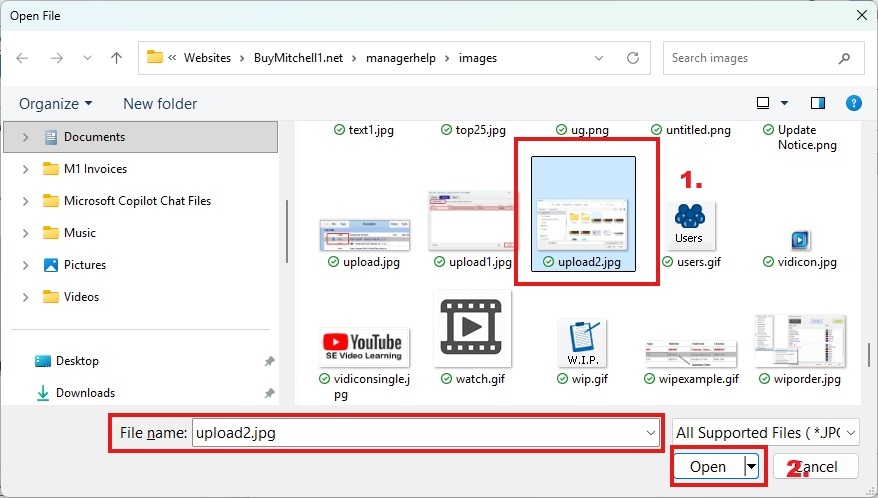
5. Click Open.
Your File(s) appear in the Upload tab of the Attach Files dialog box..
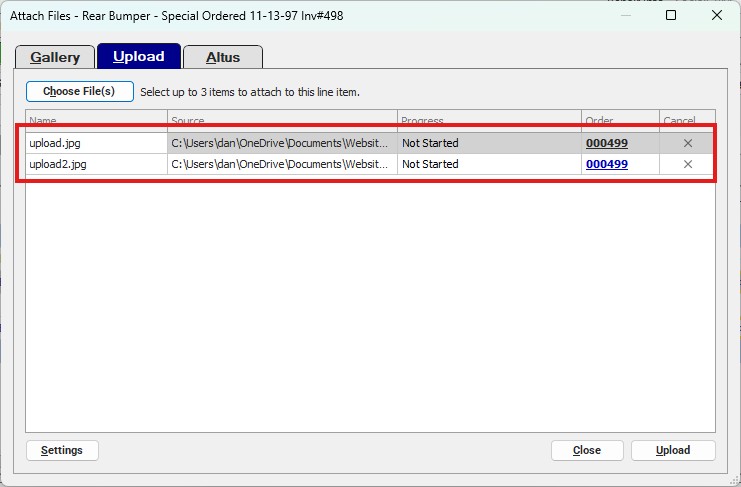
6. Click Upload. A progress bar gives you the Status of the upload.
A darkened file icon now displays in the File field of the order grid.
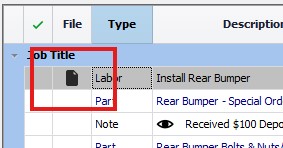
You can click on the icon to display your uploaded file in the Image/Document Gallery.